OC Alert App Armor Setup Guide

The Olds College Alert App is used to send important safety and emergency notifications to students and staff. To ensure you receive these alerts, please follow the steps below.

Download OC ALERT

Olds College Alert is the official safety app of Olds College of Agriculture & Technology. Download the app for all safety & security needs including emergency contacts, crisis alerts, incident reporting and more.

badge_apple.jpeg badge_android

Enabling Notifications Within the App

Follow these steps to ensure notifications are enabled inside the app:
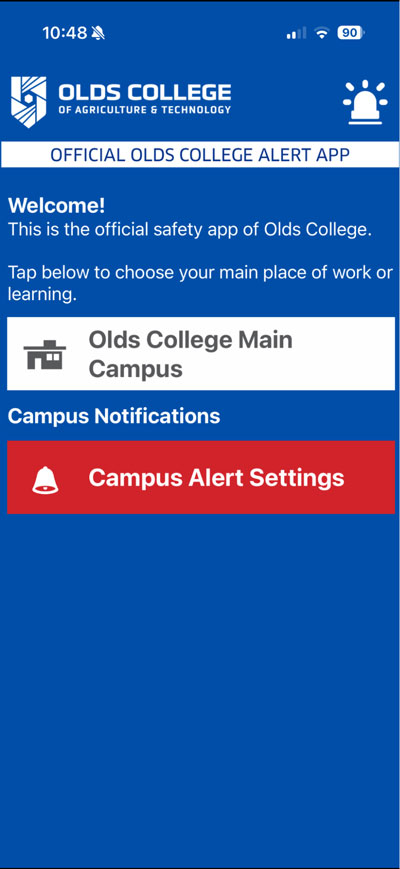
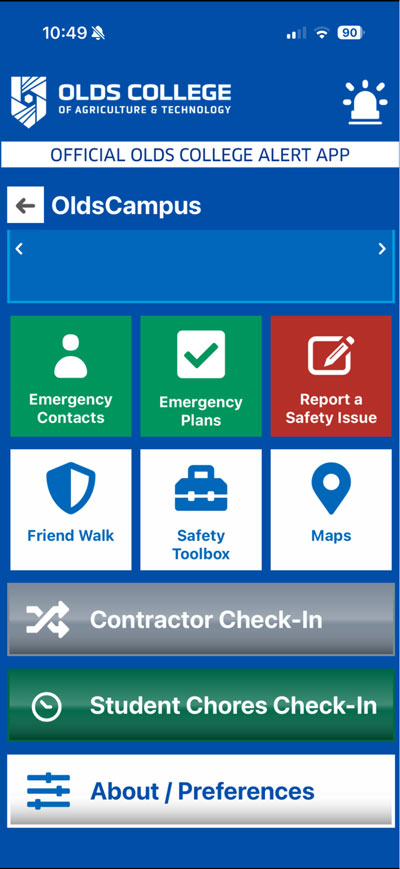
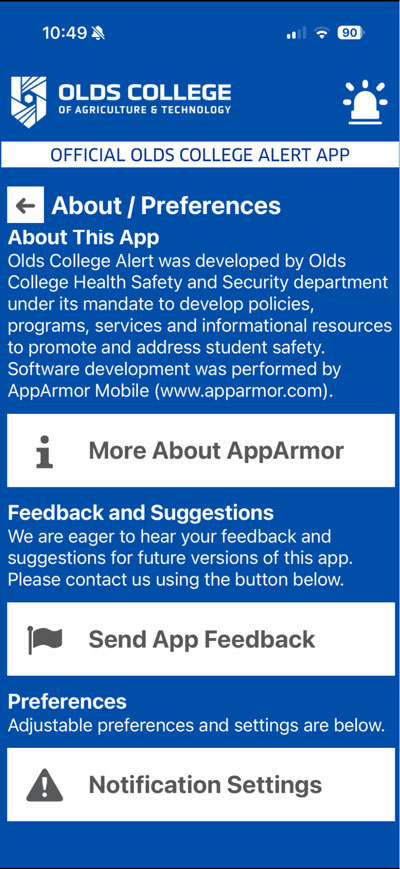
  1. Open the Olds College Alert App
  2. Select Olds College – Main Campus
  3. Tap About / Preferences
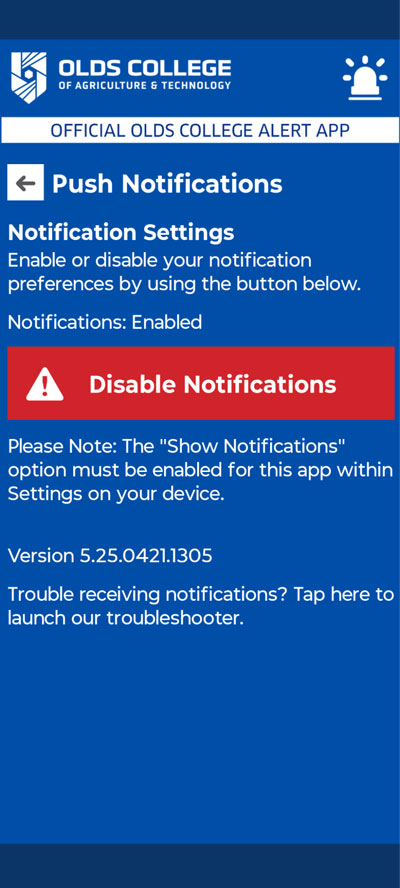
  4. Select Notification Settings
  5. Toggle Enable Notifications to ON

Enabling Notifications on Your Phone

Please note:

  • Notifications are sent by Olds College Security for emergencies, safety alerts, and important updates.
  • You do not need to subscribe to alerts—notifications are sent automatically.
  • You may not receive frequent notifications unless there is an active alert or system test.
  • iPhone (iOS):

    1. Open Settings
    2. Tap Notifications
    3. Select Olds College Alert
    4. Ensure:
    5. Allow Notifications is ON
    6. Lock Screen, Banners, and Alerts are enabled

    Android:

    1. Open Settings
    2. Tap Apps
    3. Select Olds College Alert
    4. Tap Notifications
    5. Ensure notifications are turned ON
  • After installing the app:

    • Open the Olds College Alert App
    • Accept any permission requests
  • Some alerts may be location-based.

    iPhone:
    Settings → Privacy & Security → Location Services → Olds College Alert → set to While Using or Always

    Android:
    Settings → Location → App Location Permissions → Olds College Alert → set to Allow
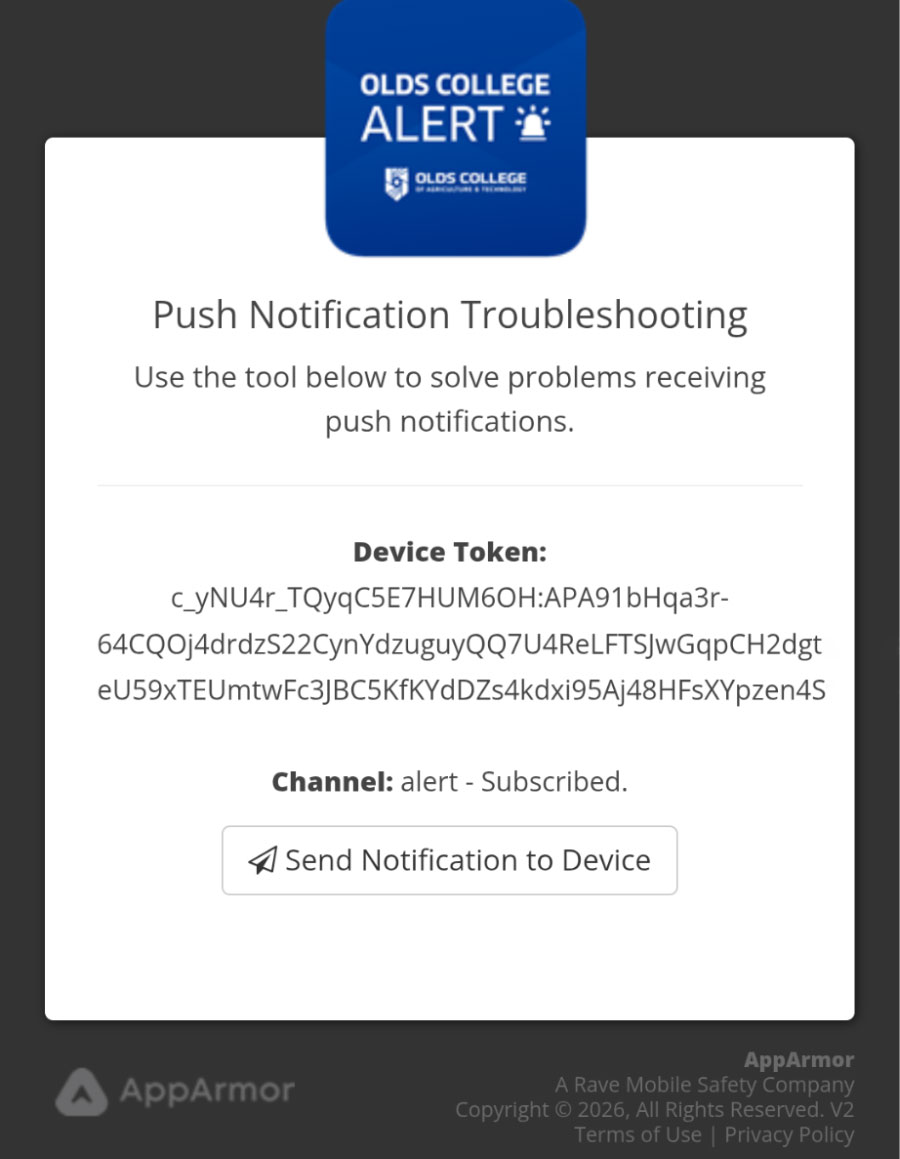
Troubleshooting

If you are not receiving notifications:

  • Confirm notifications are enabled in your device settings
  • Ensure the app is installed and opened at least once
  • Check that your device is not in Do Not Disturb / Focus Mode
  • Try uninstalling and reinstalling the app


Need Help?

If you continue to experience issues receiving alerts, please contact:

Olds College Security

403.556.8225
security@oldscollege.ca